

Use this guide alongside your drawing review. Open the Scope app.
Open Scope and choose a sample or your own project.
Open scope.odidor.app to reach the drawing workspace. The overview offers Open your projects for project work and Explore a sample for a guided look at the review experience. Sign in or create an account in the app when you are ready to work with your own projects. If you are learning the interface, start with the public sample before uploading a drawing set.
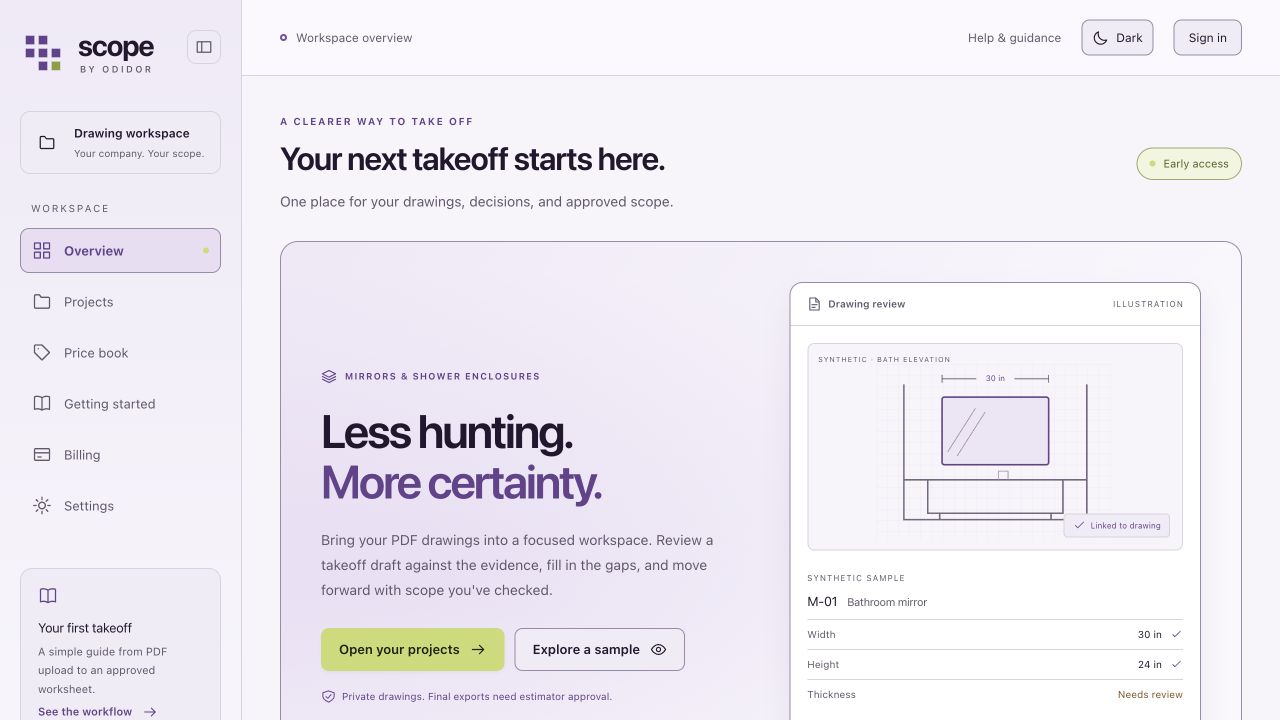
- Use the Overview, Projects and Getting started navigation to move between the workspace, your project list and guidance.
- Choose an authorized drawing set for your first project and identify the drawing issue you intend to review.
- Start with a small, familiar scope so you can compare the proposed items with your own reading of the drawings.
Practice finding a value's drawing evidence in the sample.
The public sample is read-only and uses synthetic mirror data. Search for an item or use filters such as Needs review, Missing info and Conflicts to find a review question. Select a field's value to inspect its drawing evidence. The aim is to understand which source supports a value and which information still needs an estimator's decision, rather than treating the draft as a finished answer.
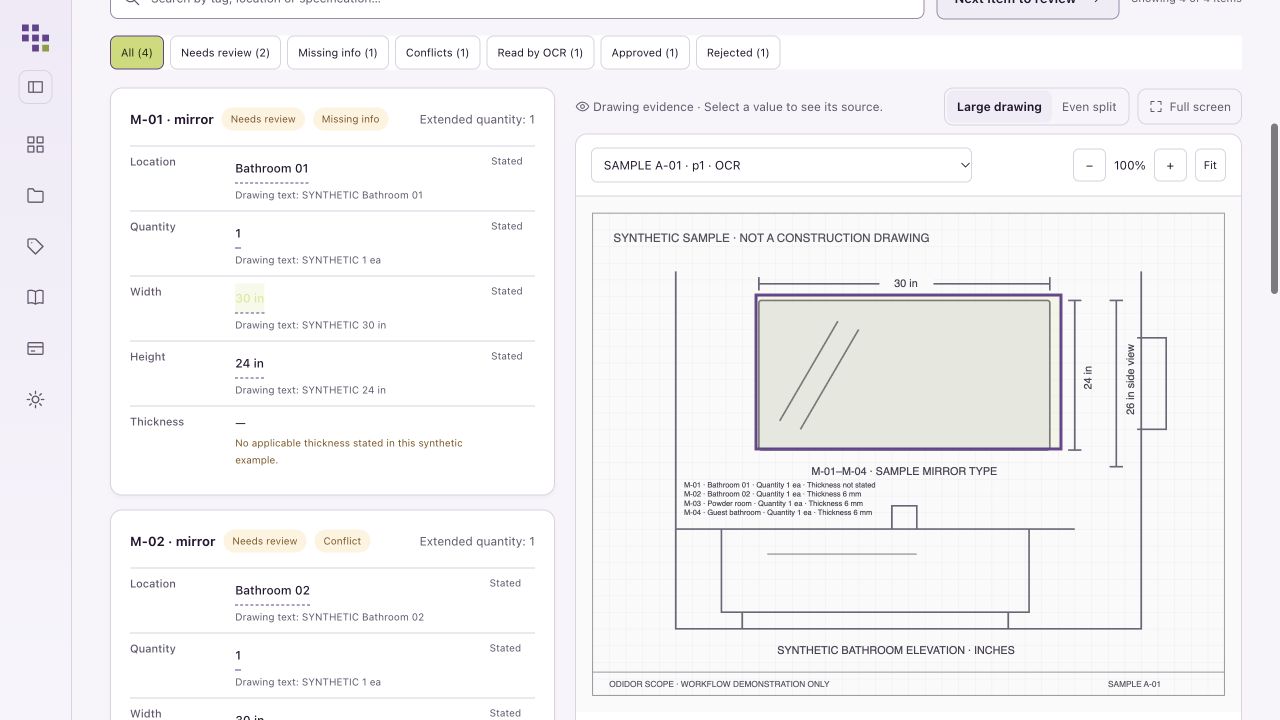
- Inspect M-01, whose sample width and height are stated as 30 × 24 in while the thickness needs review.
- Compare the competing 24 in and 26 in height readings shown for M-02. Follow the references before deciding which value is applicable.
- The sample's practice marks do not save project edits, approve a live takeoff or produce an export. Use it to learn the review controls.
Upload the drawing issue and extract a selected scope.
For your own work, sign in, choose your company and open Projects to create a project. Follow the app's Upload and Extract stages. Each new drawing upload becomes a new revision; keep its issue identifiable. Choose the extraction kinds that match your scope and check the matched sheets and words. A useful first takeoff has a clear scope and a reviewer who knows what belongs in it. Use the app's Getting started guidance for its current file requirements and extraction limits.
- Name the project and drawing issue so the team can distinguish the source from a later revision.
- Check the drawing previews and the pages relevant to your selected trade before relying on the resulting draft.
- Review missing or unclear information rather than assuming that extraction has supplied a complete specification.
Use Results to understand the draft, then review the fields.
Results is a starting point for checking the proposed scope. Read the check-this notes and inspect items marked as possibly not real items. Review the tags and locations first, then check the quantities, dimensions and specifications against their drawing sources. Repeated references are not automatically multiplied into final quantities. You can see the draft without completing Review; the review and approval steps are required for the final approved export.
- Check that a repeated tag is not a duplicate view of the same item before adding it to the count.
- Keep a missing field open until it can be confirmed, and inspect both sources when values disagree.
- Record corrections with a reason. Where quantity needs checking, use the drawing's tags or a deliberate manual count instead of assuming a typical detail establishes the installed count.
- Draft Excel and CSV downloads are available before approval. Keep their DRAFT / NOT REVIEWED markings; they are not the approved worksheet.
Approve deliberately and check the exported scope.
The Review stage is where the estimator decides which scope is ready. Resolve the required review questions, handle excluded items explicitly and approve each included item. Then approve the takeoff to create its read-only snapshot. The approved export contains approved items only. Compare the CSV or Excel file with that reviewed scope, including tags, quantities, dimensions and units. Keep the source revision and review context with the file so another team member can trace what was checked.
- Confirm that the final export represents the intended reviewed scope, especially when some items were held or excluded.
- Spot-check exported rows against both the project record and the drawing evidence.
- When a revised drawing set arrives, identify it as a new issue and check the affected scope again.
- A takeoff approval records the estimator's review. It does not replace the project-specific requirements for ordering, fabrication or installation.
Questions before you start
Can I explore Scope before uploading my own drawings?
Yes. Explore a sample opens a public, read-only example with synthetic data. You can inspect item fields and drawing evidence without using your own project drawings.
Does the sample save my changes or export a takeoff?
No. It is a read-only demonstration. Practice marks do not save project edits, approve a live takeoff or create an export. Work with your own project in an account for the project review workflow.
What is the difference between draft Results and an approved export?
Draft results are proposed information that still needs an estimator's checks. An approved export follows the project's review and approval workflow. Keep any draft download labelled as not reviewed.